Update report · WooCommerce
WooCommerce 9.8 → 11.3: What a Real Test Order Showed
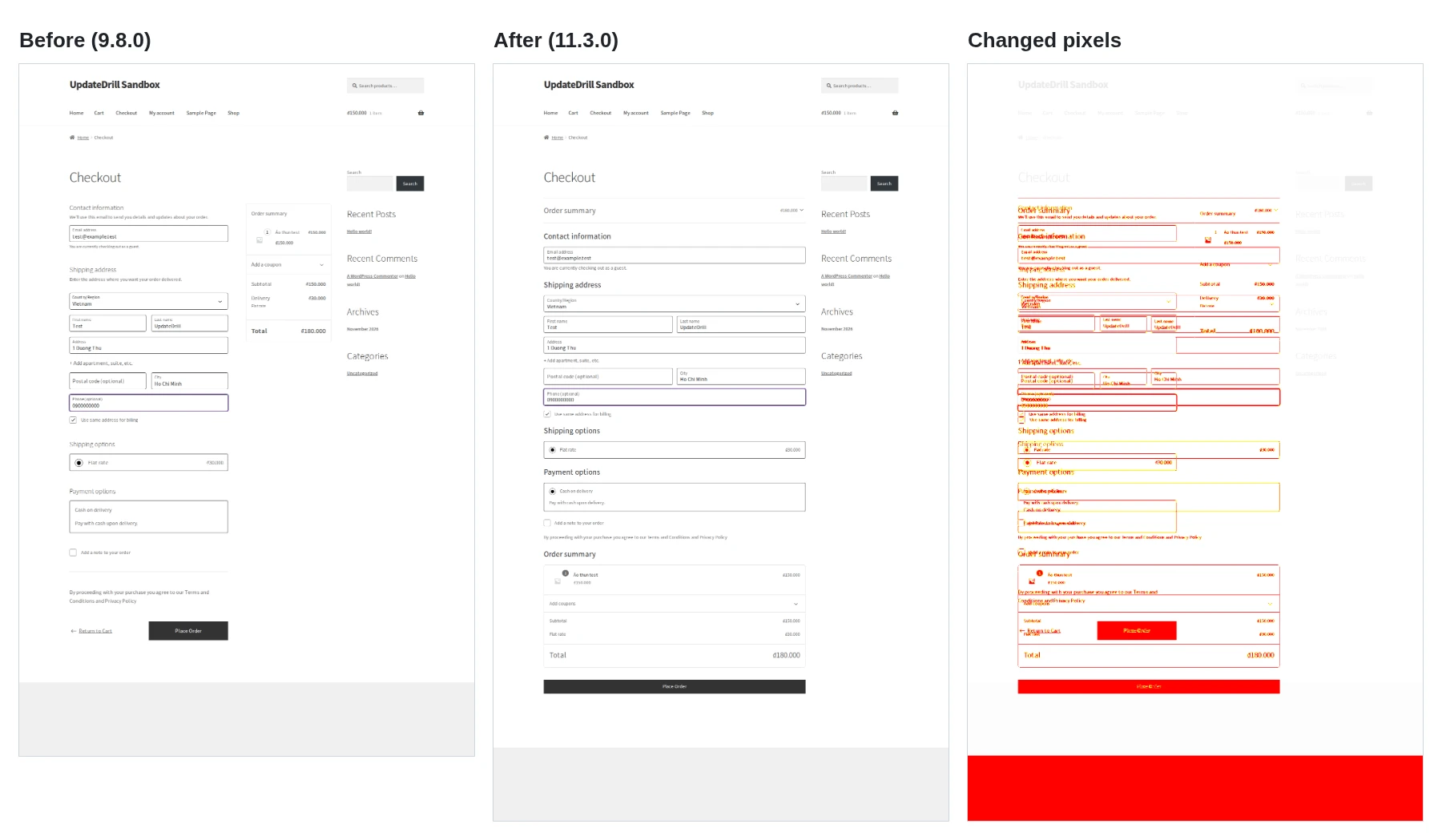
Checkout kept working after a jump from WooCommerce 9.8.0 to 11.3.0, and the order total and shipping stayed exactly the same. What did change was the layout: 12.1% of the checkout page and 6.8% of the empty cart page looked different afterwards.
We tested this jump on purpose. Many stores sit on an old version for months, then update everything in one evening. That is the riskiest kind of update, and the one people are least likely to test by hand.
The test setup
The test ran on a fresh sandbox store in Docker, not a client site. It is deliberately plain, so any change comes from the update itself.
| Setting | Value |
|---|---|
| WooCommerce | 9.8.0 → 11.3.0 |
| Theme | Storefront 4.6.0 → 4.6.2 |
| Checkout | Block checkout (the default for new stores) |
| Products | 1 simple product, 150,000 VND |
| Shipping | Flat rate, 30,000 VND |
| Payment | Cash on delivery |
| Currency | Vietnamese dong (VND), no decimals |
UpdateDrill took a snapshot, loaded the home, shop, product and cart pages, and placed a real test order. It then applied each update on its own, repeated every step, and compared the two runs: page status, order total, shipping, screenshots, browser console errors and new lines in debug.log.
Results
The run ended as a WARN, not a FAIL: nothing broke, but two pages looked noticeably different.
| Check | Before (9.8.0) | After (11.3.0) | Verdict |
|---|---|---|---|
| Test order placed | Yes | Yes | PASS |
| Order total | 180,000 VND | 180,000 VND | PASS |
| Shipping | 30,000 VND | 30,000 VND | PASS |
| New PHP fatal errors | — | None | PASS |
| Empty cart page pixels changed | — | 6.8% | WARN |
| Checkout page pixels changed | — | 12.1% | WARN |
All five pages returned HTTP 200 before and after. There were no new JavaScript console errors and no new PHP log entries. The whole run took 63 seconds.
The warning threshold is 2% of pixels. Layout changes are a warning rather than a failure, because they are often intended. A person should look at them before the update reaches a live store.
As a control, a run that updated only Storefront passed with no warnings.
What changed on cart and checkout
On this Storefront setup, with its default sidebar, the checkout went from two columns to one. The page grew from 2,077 to 2,273 pixels tall. Three things moved:
- Order summary. Before, it sat in a narrow column to the right of the form. After, a collapsed bar at the top shows the total, and the full summary moved below the payment options.
- Place Order. Before, it was a button at the end of the form, next to a "Return to Cart" link. After, it is a full-width button at the very bottom, and the "Return to Cart" link no longer shows.
- Terms notice. "By proceeding with your purchase…" moved from just above Place Order to just below the payment options.
The cart screenshots show the empty cart, because the test opens /cart/ in a fresh browser. WooCommerce 11 dropped the large sad-face icon and shows a bigger "Your cart is currently empty!" heading instead. The "New in store" products moved up, and the page got 84 pixels shorter.
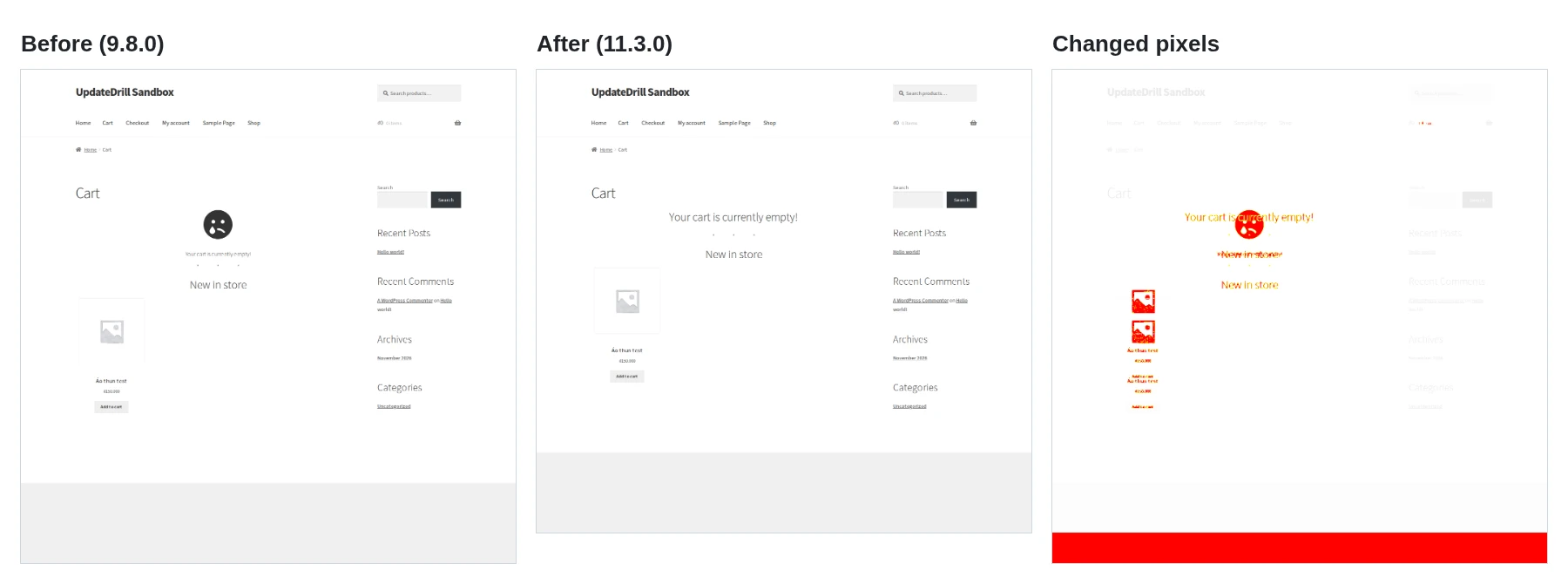
In the diff images, red marks changed pixels. The solid red band at the bottom is the difference in page height. Most of the 12.1% on checkout is content that moved, not content that changed.
None of this stopped the order from going through. On a store with custom CSS, a checkout extension or a page builder, the same shift could hide a field or push the Place Order button below the fold. That is why a screenshot comparison sits beside the test order.
If you automate checkout tests: wait for the recalculation
Our first automated run reported "Checkout broke after the update". Checkout was fine; the test clicked too early.
After an address is entered, block checkout recalculates the cart in the background. On WooCommerce 11 this sometimes happens in two passes, and the first shows nothing on screen. A Place Order click during that window is silently ignored.
What fixed it:
- Wait until WooCommerce's background requests have finished before reading totals or clicking Place Order.
- After clicking, confirm that an order request actually went out.
- If none did, click again, up to 3 times. Never click again once a request has gone out, so you can't create duplicate orders.
If you test with Playwright, Cypress or similar, a fixed sleep is not enough. Wait for the network, then verify the request.
Updating after a long gap: a checklist
- Copy the live store to staging, and block outgoing email there so test orders never reach customers.
- Place a test order on staging before updating, and note the total and shipping.
- Apply updates one at a time, so a problem points at one plugin.
- Run WooCommerce's database update after updating the plugin.
- Place the same test order again and compare the total and shipping to the cent.
- Compare cart and checkout screenshots, especially with custom CSS or checkout plugins.
- Read the new lines in
debug.log, not the whole file. - Only then update the live store, with a backup you know how to restore.
To check that a test like this actually catches problems, we broke the sandbox on purpose. A small plugin raised shipping from 30,000 to 45,000 VND once WooCommerce reached version 10. The run failed with "Shipping changed" and restored the snapshot.
About UpdateDrill
UpdateDrill runs every step of that checklist for you. It clones the store to staging, places the test orders, compares the results and rolls staging back on a failure. You get a pass, warn or fail report you can forward to a client.
It's in early access. If you look after WooCommerce stores, request a free check and we'll run one update rehearsal on a store of your choice. We'll repeat this test for each new WooCommerce release.
Request a free check